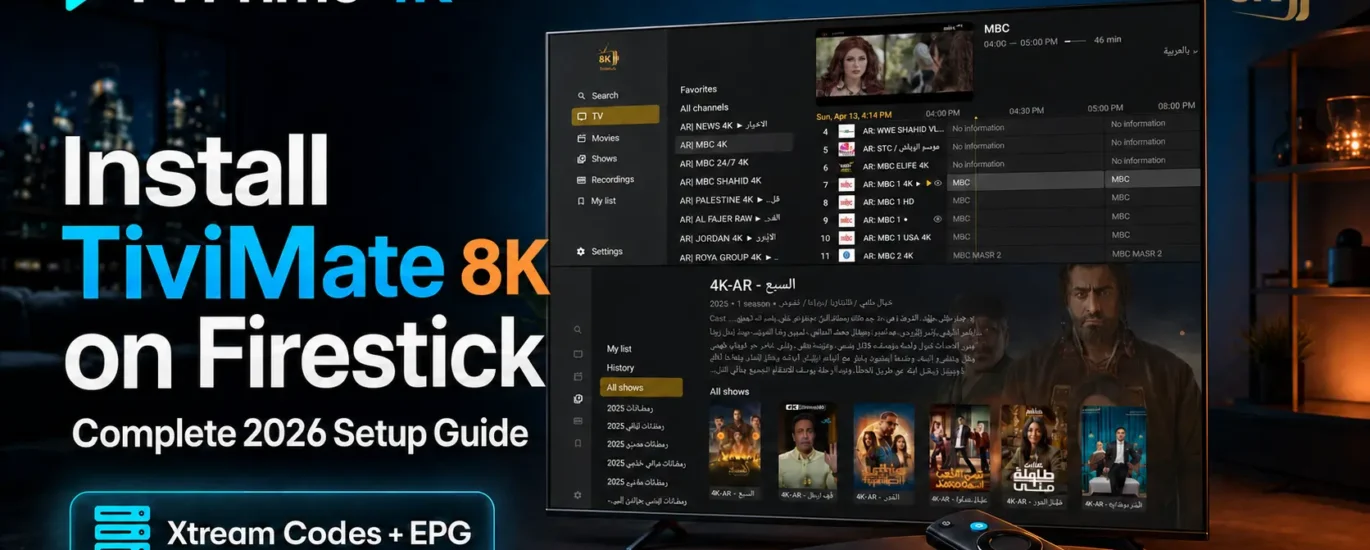
Looking for the smoothest, highest-quality IPTV experience on your Firestick or Android TV? This step-by-step guide walks you through installing TiviMate 8K Player — widely considered the best IPTV player available — and connecting it to your TVPrime4K subscription for buffer-free streaming in HD, Full HD, and 4K.
TiviMate stands out for its clean channel guide, rock-solid playback, and deep customization. Pair it with a subscription from TVPrime4K.com and you unlock 52,000+ live channels and 180,000+ movies and series, delivered with 99.9% uptime on anti-freeze servers.
⚠️ Important: TiviMate is a player only — it does not include any channels by default. To activate live TV and VOD, you need an active subscription from TVPrime4K.com.
What You’ll Need Before Starting
- An Amazon Firestick, Fire TV, or Android TV device connected to the internet
- About 10 minutes of your time
- Your TVPrime4K username and password (sent by email or WhatsApp after you subscribe — grab a free 24-hour trial here if you don’t have one yet)
🔧 Step-by-Step: Install TiviMate 8K Player on Firestick or Android TV
Step 1: Install the Downloader App
The Downloader app is the standard tool for sideloading apps onto Fire TV devices. It’s free and available directly from the Amazon Appstore.
- From your device’s home screen, open the Search icon.
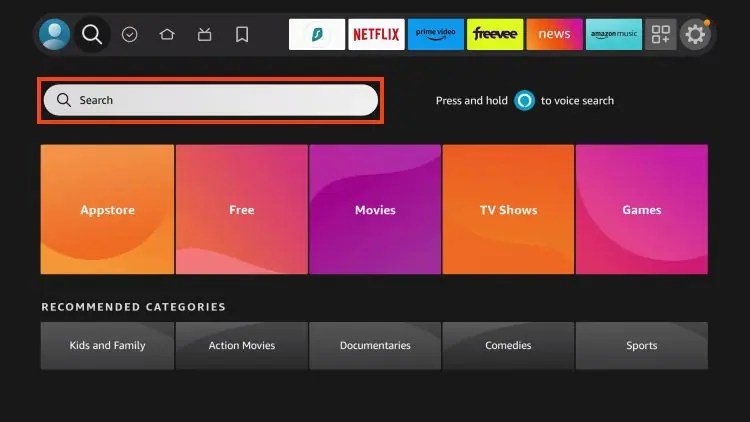
- Type and select Downloader.
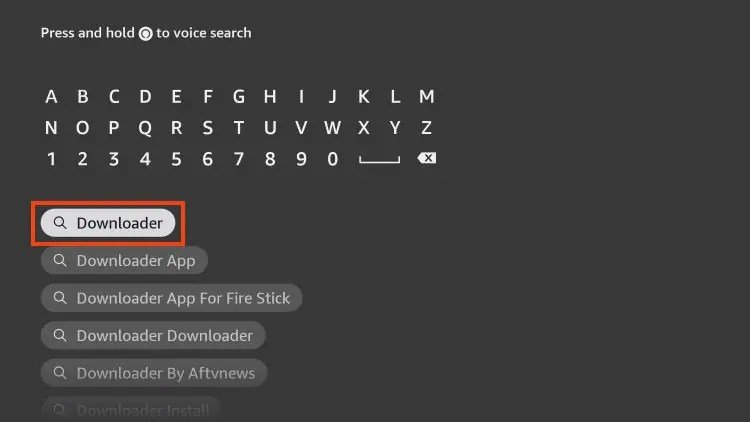
- Select the orange Downloader app from the results.
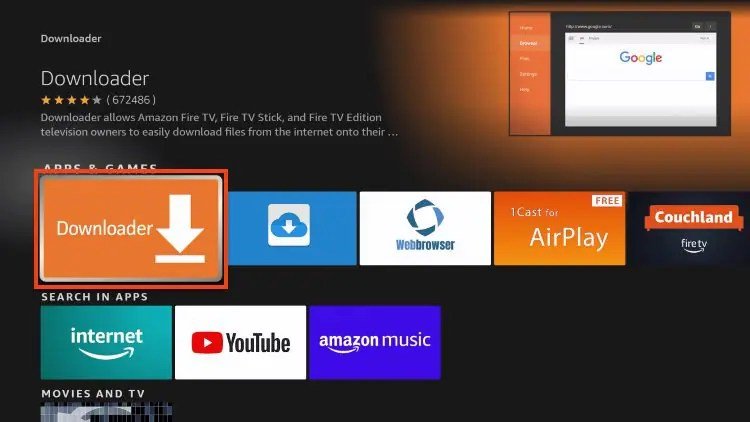
- Click Download or Get to install it.
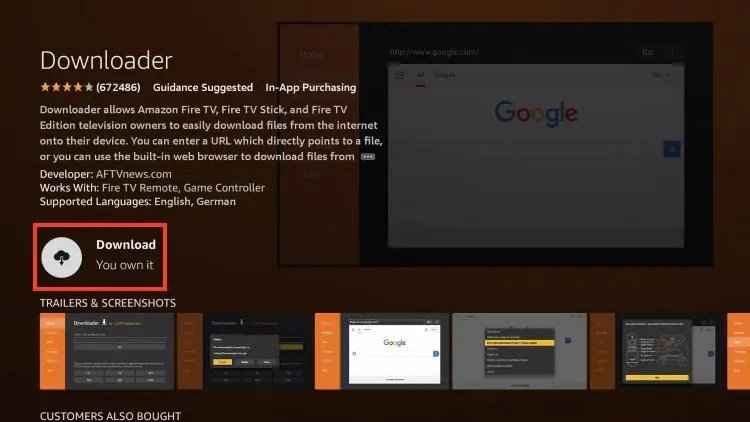
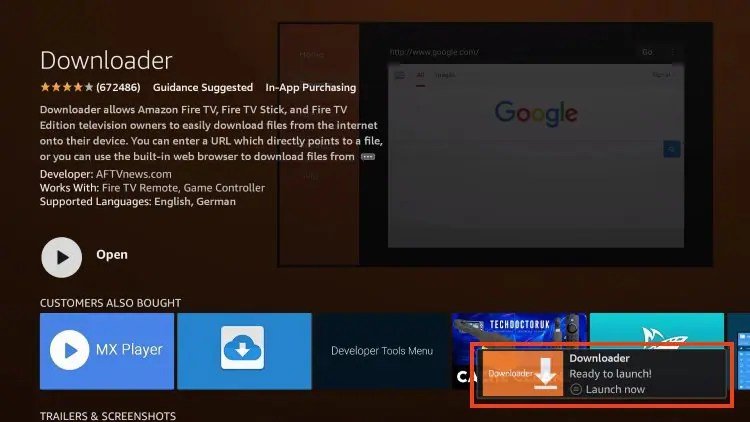
- Once installed, you’ll see the confirmation:
✅ “Downloader is Ready to Launch!”
Step 2: Enable Apps from Unknown Sources
By default, Fire TV blocks apps installed from outside the Amazon Appstore. Here’s how to allow the Downloader app to install TiviMate:
1. From the Home screen, hover over Settings and click My Fire TV.

2. Choose Developer Options.
IMPORTANT: If you don’t see Developer Options, skip to the note below Step 2 — it takes 30 seconds to unlock.

3. Click Install unknown apps.

4. Find the Downloader app and click on it.

5. This turns unknown sources ON for Downloader and enables sideloading on your device.

Can’t find Developer Options? Unlock it in 30 seconds
Newer Fire OS versions hide Developer Options by default. Here’s how to reveal it:
1. Hover over the Settings icon and click My Fire TV.

2. Click About.

3. Highlight Fire TV Stick and press the OK button on your remote 7 times. A message will confirm you’re now a developer.

4. Press Back on your remote — Developer Options now appears under My Fire TV.

5. Click Install unknown apps, find Downloader, and switch it ON.


Your Firestick is now ready — on to the fun part.
Step 3: Download & Install the TiviMate 8K Player App
1. Launch the Downloader app.

2. Hover over the URL bar and press the select button on your remote.

3. Enter the download code: 5811661
or the short URL: nz.sa/m8k — then click Go.

4. A redirect page will appear. Wait 4–6 seconds — if the download doesn’t start automatically, click the download link.

5. Wait for the app to finish downloading.

6. Click Install.

✅ The application is now installed.
Step 4: Connect TiviMate to Your TVPrime4K Subscription
- Open TiviMate 8K Player.
- Follow the initial setup and choose Add Playlist.
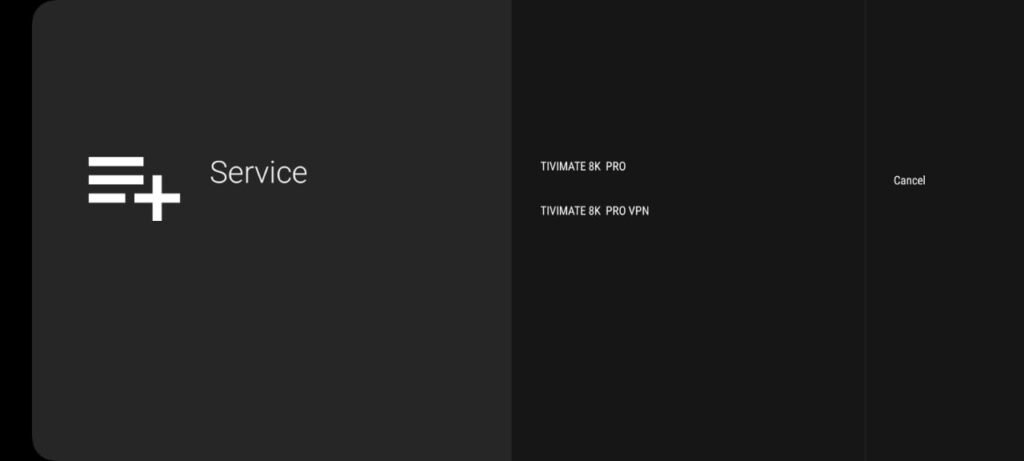
- Select TIVIMATE 8K PRO VPN.
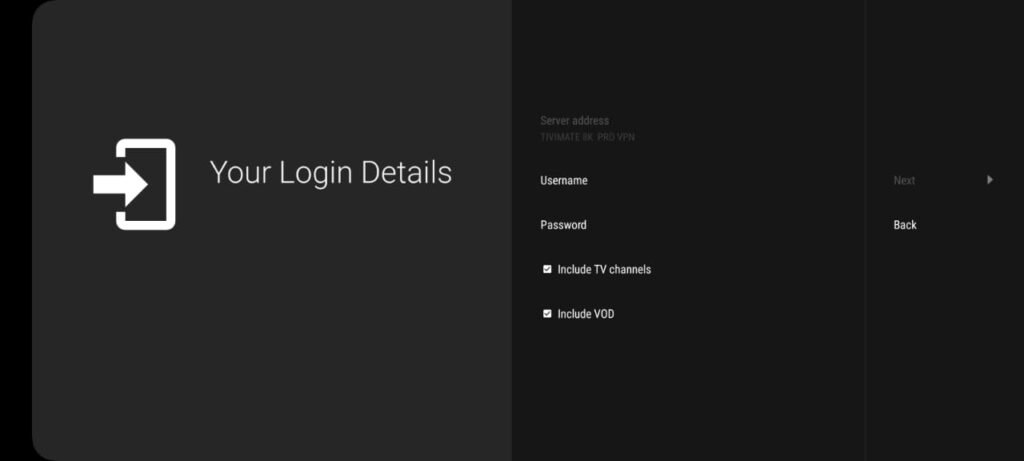
- Enter your TVPrime4K credentials:
- Username
- Password
- Wait a moment while the app loads your full channel list and library.
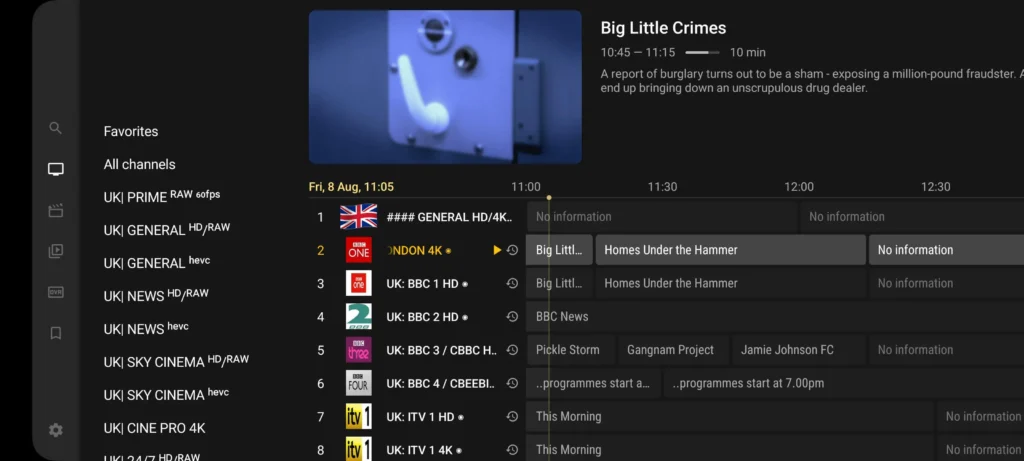
That’s it — you now have instant access to:
- 52,000+ live TV channels from the UK, Europe, and worldwide
- 180,000+ movies and series on demand
- Organized categories with a full EPG (TV Guide)
🌟 Why TiviMate + TVPrime4K Is the Perfect Combo
| Feature | Benefit |
|---|---|
| Buffer-Free Playback | Anti-freeze servers with 99.9% uptime |
| 4K & Full HD Quality | Crystal-clear picture on every screen |
| Full EPG Support | Complete TV Guide across all channels |
| Multi-Screen Mode | Watch several channels at once |
| Catch-Up & Recording | Never miss your favorite shows |
| Deep Customization | Favorites, layouts, and personalized guide |
🔥 Get Your TVPrime4K IPTV Subscription
Don’t settle for slow, unreliable IPTV providers. Thousands of viewers across the UK and Europe already stream with TVPrime4K:
✅ 52,000+ Live Channels
✅ 180,000+ Movies & Series (VOD)
✅ 4K, FHD & HD Streaming
✅ 99.9% Uptime — Anti-Freeze Servers
✅ Works on Firestick, Smart TV, Android, iOS & more
✅ Free 24-Hour Trial
👉 Visit TVPrime4K.com to explore plans and get started in minutes.
📲 Need help? Our support team is available 24/7:
- WhatsApp Support: +44 7888 892117
- Email: support@tvprime4k.com
🙋 Frequently Asked Questions
1. Is TiviMate free to use?
The TiviMate app itself is free to install, but it’s a player only — it contains no channels. You’ll need an active subscription from TVPrime4K.com to stream live TV and VOD. For player-specific details, see the official TiviMate website.
2. How do I get my login credentials?
As soon as you subscribe to TVPrime4K, your username and password are delivered by email or WhatsApp — usually within minutes.
3. Can I use TiviMate on more than one device?
Yes. TVPrime4K offers 1, 2, and 3-screen plans so you can stream on multiple devices at the same time. See the pricing page for details.
4. Can I try before buying?
Absolutely — grab a free 24-hour trial from TVPrime4K and test the full service on your device.
5. What if the channels buffer or won’t load?
First, restart the app and check your internet speed (25 Mbps+ is ideal for 4K). If the issue persists, contact TVPrime4K support on WhatsApp — most playback issues are resolved in minutes. For Firestick hardware problems, Amazon’s official Fire TV help page is a good resource.
6. Is TiviMate better than other IPTV players?
For Firestick and Android TV, yes — TiviMate leads on speed, stability, and interface quality. If you prefer alternatives, TVPrime4K also works perfectly with IPTV Smarters Pro and IBO Player.
🎬 Final Thoughts
Installing TiviMate 8K Player on your Firestick or Android TV takes less than 10 minutes — and once it’s connected to TVPrime4K, you unlock one of the largest, most reliable IPTV libraries available: 52,000+ channels, 180,000+ VOD titles, and a premium viewing experience built for modern viewers.
Ready to upgrade your streaming?
💥 Visit TVPrime4K.com to get started — or reach us anytime:
📞 WhatsApp: +44 7888 892117
📧 Email: support@tvprime4k.com